
Elongated wooden cube labelled "Current topics" in blue. Next to it, further square wooden cubes with symbols. A biro on the right and a computer keyboard in the background.
This page has been automatically translated. There may therefore be discrepancies and inaccuracies in the text. Only the original version is binding. Legal claims arising from the content of the translated version are excluded.

Use the online letterbox now

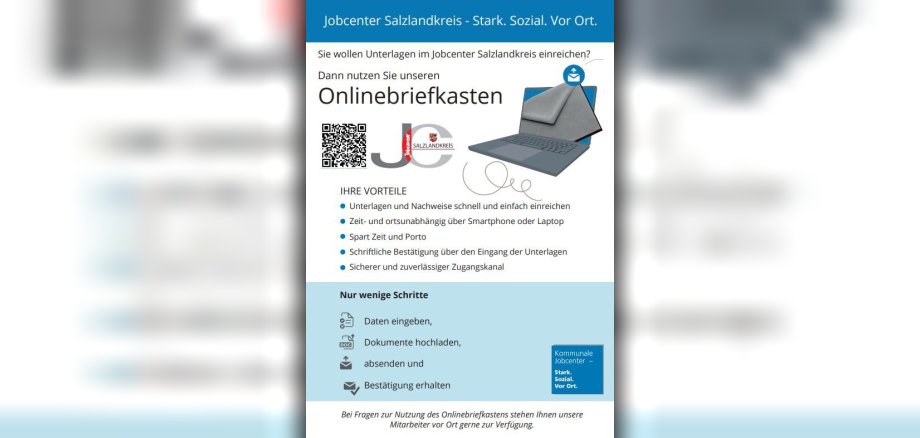
The Salzlandkreis job centre is expanding its online services. In addition to the digital application process that has been available for some time, the homepage www.jc.salzlandkreis.de now also offers the use of an online letterbox.

Without having to go to the office or post box, citizens can now send all requests and documents relating to the Salzlandkreis Job Centre directly and easily to the authority. The receipt of the respective enquiry or the correct uploading of the documents is confirmed immediately by means of an automated reply email.

The aim of the introduction is to reduce communication by email and to manage incoming mail in line with requirements. The online mailbox also ensures a standardised and data protection-compliant exchange of information between citizens and authorities.

Using the new tool is child's play: the user enters their sender details, confirms the privacy policy, selects the appropriate specialist area or the desired service and uploads the supporting documents. The data and documents are then summarised again. With a final click, the user then sends the documents to the job centre digitally and in a legally secure manner.

If you have any questions about using the online mailbox, the Job Centre service staff at the individual locations will be happy to help.

Help with accessibility

  • General

    We strive to make our websites accessible to all users. Details can be found in our accessibility statement. Please send any suggestions for improvement to jc-redaktion@jc.kreis-slk.de.

  • Font size

    To adjust the font size, please use the following key combinations:

    Larger

    command
    +

    Smaller

    command

    Larger

    Ctrl
    +

    Smaller

    Ctrl
  • Keyboard navigation

    Use TAB and SHIFT + TAB to navigate through next/previous links, form elements, and buttons.

    Use ENTER to open links and interact with elements.

  • Contrast mode

    Press the following key combination to reduce or increase the contrast:

    Enlarge

    control
    option
    command
    .

    Decrease

    control
    option
    command
    ,
    Note: The shortcuts must be activated in the system settings of the operating system.

    Press the left ALT key + left SHIFT key + PRINT to quickly turn high contrast mode on or off.

  • Invert colours

    Press the following key combination to switch the colour inversion on and off:

    control
    option
    command
    8
    Note: The shortcuts must be activated in the system settings of the operating system.

    First activate the screen magnifier and then switch the colour inversion on and off with the following key combinations:

    1. screen magnifier

    +

    2. invert colours

    Ctrl
    Old
    I
  • Screen magnifier

    Press the following key combinations to use the screen magnifier:

    Switch on/off

    option
    command
    8

    Enlarge view

    option
    command
    =

    Zoom out view

    option
    command
    Note: The shortcuts must be activated in the system settings of the operating system.

    Switch on / Enlarge view

    +

    Zoom out view